
Quick answer
On ConnectUC, press the envelope button or dial 5001 and enter your PIN. From the main menu press 5 then 1 to change your PIN, 5 then 2 to record your name, and 6 then 1 to record a greeting. Your initial PIN comes from your phone administrator or HopDial support.
Checking voicemail
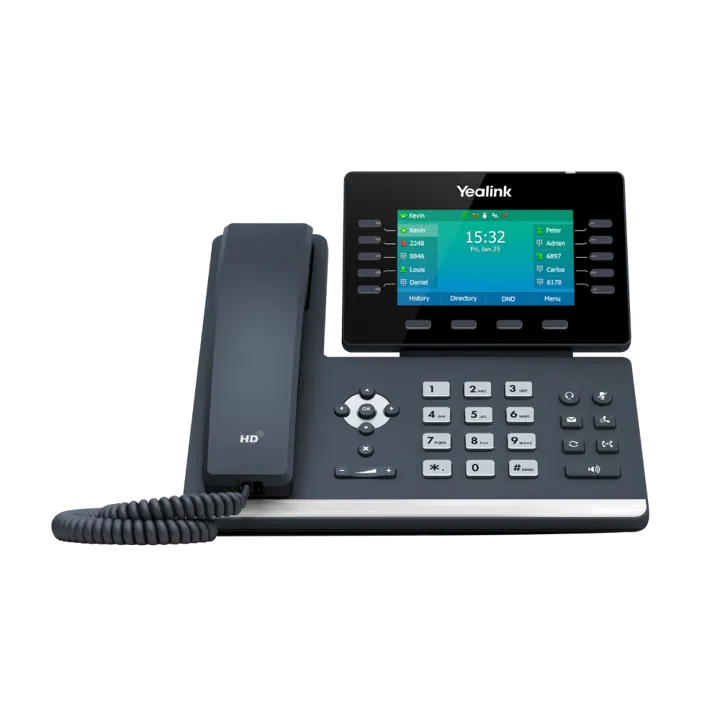
- Press the voicemail button with the envelope icon. If the phone shows a mailbox or account list, choose your account.
- Enter your voicemail PIN when prompted.
- Press 1 for new messages or 2 for saved messages.
Shortcut: dial 5001 from your own extension if the envelope button does not connect to your mailbox.
- From your own phone: press the envelope button or dial 5001, then enter your PIN.
- From another extension in your office: dial 5000, then enter your mailbox number and PIN.
- From outside: call the number that reaches your mailbox and press * when your greeting starts, then enter your PIN.
Set up your mailbox
| Task | Keys | What to do |
|---|---|---|
| Change your PIN | 5, then 1 | Enter a new PIN and confirm it. |
| Record your name | 5, then 2 | Record your name when prompted. |
| Record your greeting | 6, then 1 | Record and save your greeting. |
| Review your greeting | 6, then 2 | Listen to your recording. |
| Select a greeting | 6, then 3 | Choose the greeting callers hear. |
Choose a unique PIN. Simple patterns such as 1234, 0000 and 1111 are blocked. Listen for the save or confirmation prompt before hanging up.
Sample greeting: "You have reached [name] at [company]. I am unable to take your call. Please leave your name, telephone number, and a brief message, and I will return your call. Thank you."
While reviewing messages
| Key | Action | Key | Action |
|---|---|---|---|
| 1 | Save message | 6 | Reply (internal callers only) |
| 2 | Replay message | 7 | Rewind 15 seconds |
| 3 | Forward to another user | 8 | Pause or continue |
| 4 | Delete message | 9 | Fast forward 15 seconds |
| 5 | Skip to next message | # | Complete or go back (depends on the menu) |
Recover a deleted message
- From the main menu, press 7.
- Find the message (2 replays, 3 skips).
- Press 1 to restore it to saved messages.
Deleted messages are removed nightly and cannot be recovered after that.
Troubleshooting and limits
| Problem | What to do |
|---|---|
| Cannot sign in | Confirm the extension and PIN. If you forgot your PIN, ask your administrator or HopDial for a reset. |
| Missing email alert | Check junk or spam, then ask us to verify your notification settings and email address. |
| Email link does not work | Check whether the message is still in new or saved messages. Links stop working once the voicemail is deleted. |
| Mailbox is full | Delete unneeded messages. Each caller message is limited to 4 minutes 59 seconds. |
Frequently asked questions
What is the voicemail access number on ConnectUC?
Dial 5001 from your own phone, or 5000 from another extension and then enter your mailbox number and PIN.
How do I check ConnectUC voicemail from my cell phone?
Call the number that reaches your mailbox. When your greeting starts, press * and enter your PIN.
Can I get a deleted voicemail back?
Yes, until the nightly purge. Press 7 from the main menu, find the message and press 1 to restore it.
Still stuck?
Open a ticket with your extension and phone model, or call 866.305.0407.
Open a support ticket