
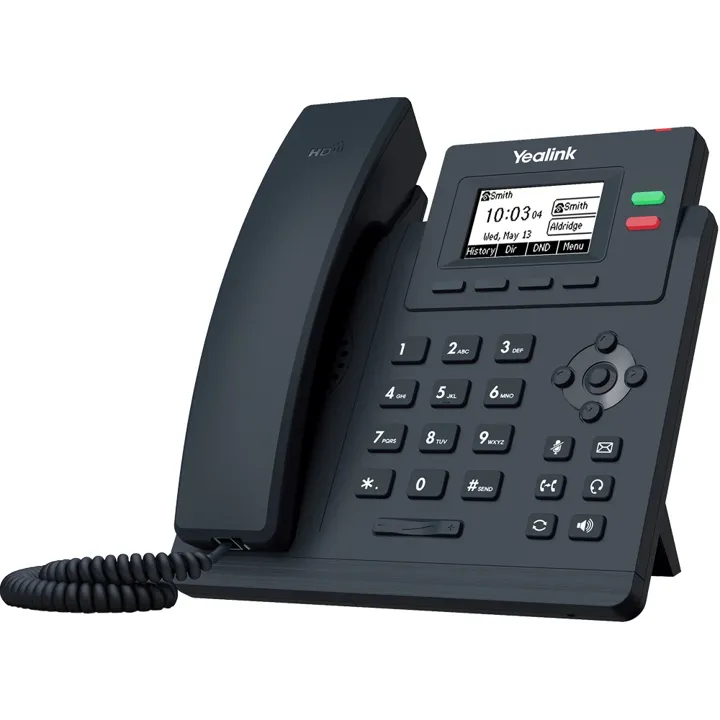
Quick answer
Yealink T31, T34W and T7 series phones on CoreNexa use the CoreNexa platform codes: * plus your extension for voicemail, Transfer + extension + * + Transfer to send a caller to voicemail, and green/red BLF keys for call park.
Models covered
Everyday calling
The T31 and T34W are compact two-line phones; the T7 series (T73 and T74) adds a larger color screen. On CoreNexa they all use the platform's standard feature codes below.
| Task | What to do | What happens |
|---|---|---|
| Answer a call | Lift the handset or press the Speaker button. | Answers the call ringing your phone. |
| Make a call | Dial the number or extension, then press Speaker or lift the handset. Or lift the handset, dial, and press Send. | Dialing first and then going off-hook places the call immediately. |
| Do Not Disturb | Press the DND soft key. | Your phone stops ringing and calls go to voicemail. |
| Check voicemail | Press the Message button, or dial * followed by your extension. | Connects to your mailbox and asks for your password. |
| Redial | Press the Redial key (two curved arrows) and choose the number. | Calls the last number you dialed. |
| Park a call | During the call, press your assigned (green) park BLF key. | The caller waits in that park spot. |
| Pick up a parked call | Press the assigned park BLF key that is lit red. | Connects you to the parked caller. |
| Attended transfer | Press Transfer, dial the extension, press Send. Talk to the person, then press Transfer once they accept. | You speak privately with the recipient before handing over the caller. |
| Blind transfer | Press Transfer, dial the extension, press Transfer, then hang up. | Sends the caller straight to the extension. |
| Transfer to voicemail | Press Transfer, dial the extension, press *, then press Transfer. | The caller goes straight to that person's voicemail without ringing their phone. |
| Intercom | Use the ICOM key if one is programmed on your phone. Intercom codes on CoreNexa vary by setup, so ask support to confirm yours. | Opens a one-touch talk path to the other phone. |
| Conference | During a call, press CONF, dial the next number, then press CONF again. | Adds another party to your call. |
T34W and T7 Wi-Fi and Bluetooth
The T34W and the W versions of the T7 series have built-in Wi-Fi and Bluetooth. A wired connection is still the most reliable for call quality. If you want to pair a Bluetooth headset, you can do it from the phone menu under Bluetooth; ask support before moving a desk phone to Wi-Fi.
Know your keys
- Soft keys are the buttons directly below the display; their labels change on screen depending on what the phone is doing.
- BLF (Busy Lamp Field) keys are programmable line keys with a light. HopDial assigns them for call park spots, coworkers' extensions, or speed dials. Green usually means idle and red means busy or a call is parked there.
- The Message key (envelope icon) and the red message-waiting light tell you when you have new voicemail.
Quick troubleshooting
| Symptom | Try this |
|---|---|
| Blank screen or no power | Check that the network cable is firmly seated. If the phone is powered over Ethernet (PoE), try a different switch port, or use the power adapter if you have one. |
| Screen says No Service or Network Unavailable, or shows no line | Unplug the power (or the PoE network cable) for 10 seconds and plug it back in. If several phones show this at once, restart your internet modem or router, then contact support. |
| Choppy, robotic or one-way audio | Usually a network issue. See the network and firewall guide (QoS, SIP ALG) and open a ticket with the time of the call and the number dialed. |
| A programmed key or name label is wrong | Keys are set from HopDial's side. Open a ticket with your extension and the change you need. |
Please don't factory reset a phone unless HopDial support asks you to. A reset can erase the settings that connect it to your phone system.
Frequently asked questions
How do I check voicemail on a Yealink T31 with CoreNexa?
Press the Message (envelope) button or dial * followed by your extension, then enter your password and #.
Are CoreNexa and ConnectUC codes the same on the T31?
No. ConnectUC uses 5001 for voicemail and *50 for intercom, while CoreNexa uses * plus your extension for voicemail. Use the guide for the platform you are on.
Still stuck?
Open a ticket with your extension and phone model, or call 866.305.0407.
Open a support ticket